
You join a Pallyy team by accepting the invite email the team owner sent you, which creates your own Pallyy account or links the invite to the one you already have. After that, the owner's shared social sets appear in your account, ready to work on. No password sharing, no logging in as someone else.
How to join a team
Joining takes a couple of minutes, and the invite email does most of the work.
- Open the invite email and accept it.
- Sign up, or sign in, with the exact email address the invite was sent to. A free account is fine.
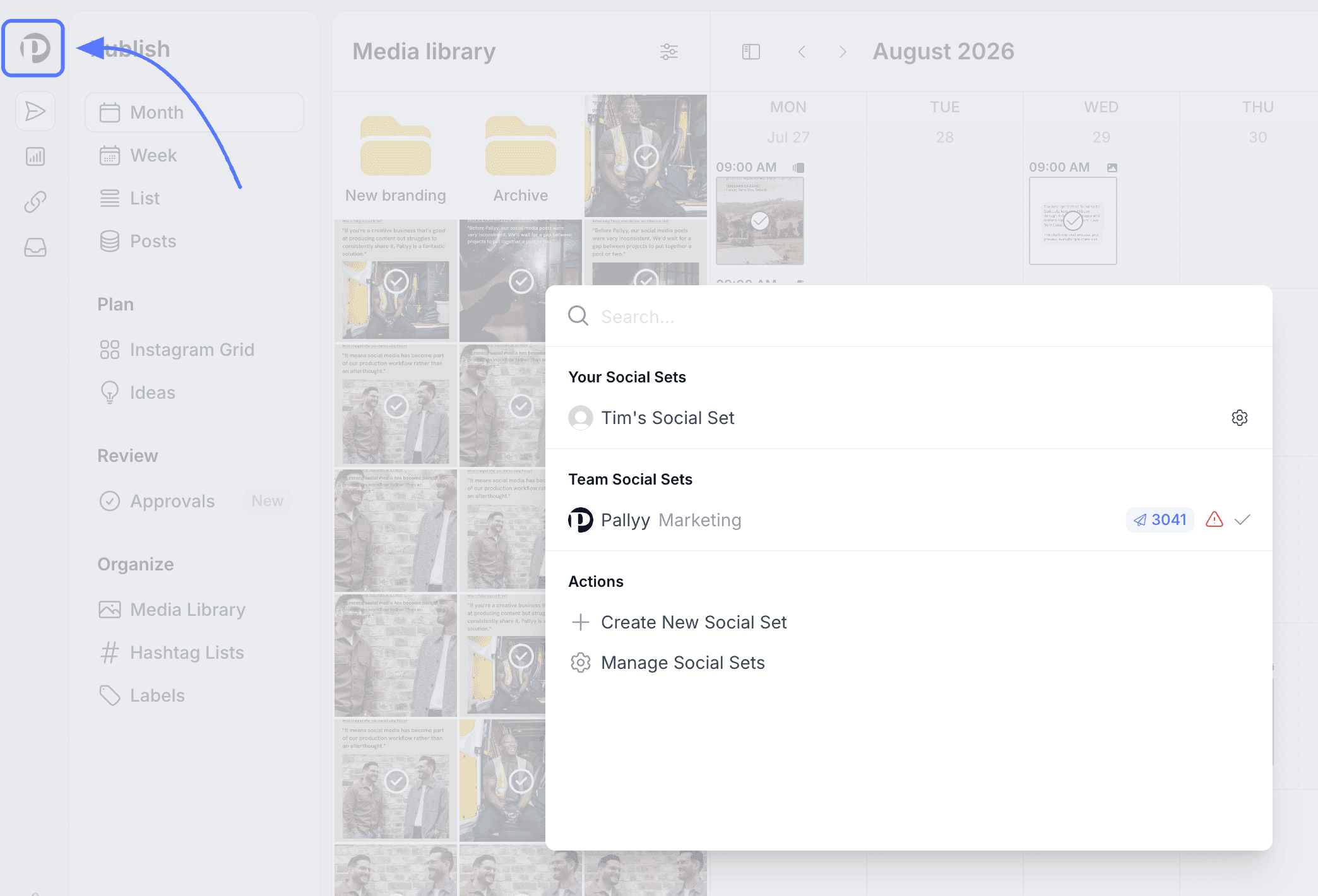
- In the dashboard, open the set selector at the top left, labeled Select social set.
- Switch to the team's social set, listed under Team Social Sets.
That last step is the one people miss, and it's the reason the next section exists.
Why your dashboard looks empty
An empty dashboard after joining a team almost always means you're still looking at your own social set, not the team's. Your account starts with its own empty set and the free plan, so seeing a bare calendar or a "Try Pro free" banner doesn't mean the invite failed.
Two things need to be true for the team's content to show up:
- You've switched sets: pick the team's set from the set selector at the top left.
- The owner shared the set: the team needs social sets added to it by the owner, since an invite to a team with no sets shares nothing.
The free plan banner talks about your own account's plan, and it doesn't limit what you can do inside the team's sets. The owner's plan covers those.
Your access inside a shared set is whatever the owner granted, and billing stays entirely with the owner's account. You can't change the team's plan by accident, which is exactly how everyone prefers it.
If the team's set isn't listed
A missing team set means the owner hasn't added it to the team yet. Ask them to open Settings > Teams, open the team, and check that the right social sets are added and that your email is on the member list. The teams guide walks the owner through the whole setup.
Frequently asked questions
Do I need a paid plan to join a team?
No. You just need a Pallyy account under the exact email the invite went to, and a free account works. The team owner's plan covers your seat and everything you do inside the shared sets.
Why do I see the free plan banner if my company pays for Pallyy?
The banner refers to your own account's plan, not the team's. Your personal account is on the free plan, while the shared sets run on the owner's subscription, so you can ignore the banner while working in team sets.
Why can't I see the team's posts or accounts?
You're most likely looking at your own social set. Open the set selector at the top left and switch to the team's set under Team Social Sets. If it isn't listed, the owner needs to add the set to the team in Settings > Teams.
Can I use my account for my own stuff too?
Yes. Your account keeps its own social set alongside the team's shared ones, and you can connect your own accounts to it. You switch between your set and the team's sets from the same selector.
More in Get started
Still need help? Email us at hey@pallyy.com and we'll get back to you.