
You connect social accounts to Pallyy from Settings > Social Sets, or during the last step of onboarding right after you sign up. Each connection is an official login with the platform itself, so Pallyy never sees your password.
How to connect an account
Connecting an account takes under a minute per platform, and the flow is the same for almost all of them.
- Go to Settings > Social Sets and open your set.
- Click the account type you want to connect.
- Log in on the platform's own page and authorize Pallyy.
- Your account appears in the set, ready for your first post.
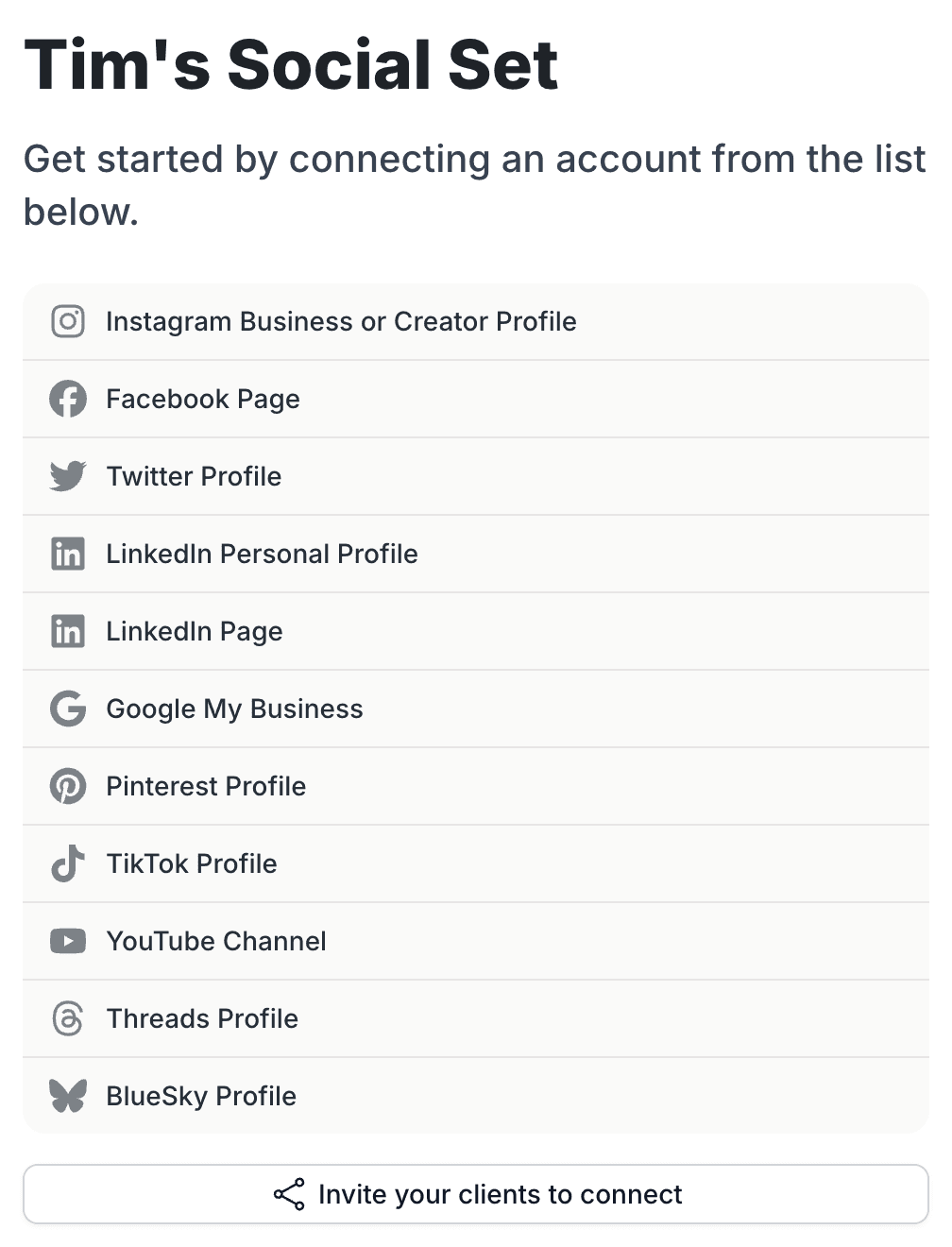
Each social set holds one account per type: one Instagram, one Facebook Page, one TikTok, and so on. Managing a second brand means a second social set.
Managing accounts for a client? You don't need their passwords. Invite clients to connect their own accounts with a secure link instead.
What you can connect
Pallyy connects 11 account types, and you'll see these exact options in your social set:
- Instagram Business or Creator Profile
- Facebook Page
- Twitter Profile
- LinkedIn Personal Profile
- LinkedIn Page
- Google My Business
- Pinterest Profile
- TikTok Profile
- YouTube Channel
- Threads Profile
- BlueSky Profile
Each platform's capabilities, formats, and quirks are covered in its own integration guide, like the Instagram integration, Facebook integration, and TikTok integration articles.
Which Instagram login type should I pick?
Clicking Instagram opens a "Select the Instagram login type" modal with two paths, and picking the right one matters more than any other choice on this page:
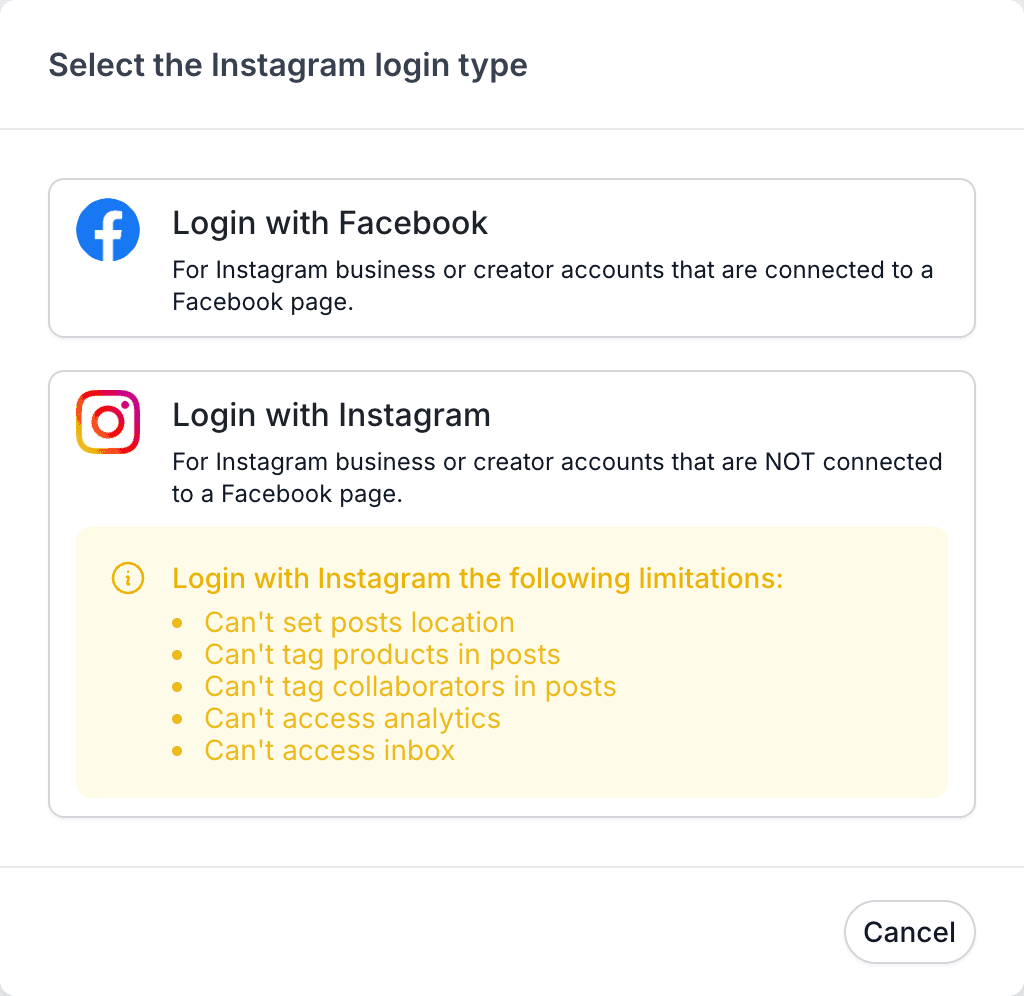
- Login with Facebook: for Instagram business or creator accounts that are connected to a Facebook Page. This is the full-featured connection, and the one to pick whenever you can.
- Login with Instagram: for accounts that aren't connected to a Facebook Page. It publishes fine, but it comes with real limitations: no post location, no product tagging, no collaborator tagging, no analytics, and no inbox.
If analytics or the inbox shows "Add an Instagram Business Profile connected with Facebook", your account was connected with Login with Instagram. The fix is quick: remove the Instagram account from your set, then reconnect it with Login with Facebook.
Instagram connections need a business or creator account either way. Personal profiles aren't supported by Instagram's API, and switching is free in the Instagram app's settings.
Fix common connection errors
Most Pallyy connection errors come down to the same few causes, and each has a straightforward fix:
- "No profile found" when connecting via Facebook: your Instagram account usually isn't linked to a Facebook Page you manage. Check your Pages at facebook.com/pages and link the Page in Instagram's settings. It can also mean Facebook auto-logged you into the wrong Facebook account, so log out of Facebook and try again.
- "Account already connected": the account already lives in another one of your social sets. Remove it there first, then connect it where you want it.
- Stale permissions or missing Pages: click Re-authorize Facebook connection on the Social Sets page to refresh what Facebook shares with Pallyy.
Platform quirks worth knowing
Two Pallyy connections behave differently from the standard login-and-authorize flow: YouTube and BlueSky.
- YouTube: after signing in with Google you pick which channel to connect, so make sure you sign in with the Google account that manages your channel. Brand accounts and personal channels both work. The YouTube integration guide has the details.
- BlueSky: connects with your credentials rather than a login redirect, so you enter them in Pallyy instead of being sent to BlueSky. The Bluesky integration guide covers it.
Frequently asked questions
Why can't I see analytics or the inbox for my Instagram account?
Your Instagram account was connected with Login with Instagram, which doesn't support analytics or the inbox. Remove it from your social set and reconnect it with Login with Facebook, which needs the account linked to a Facebook Page you manage.
Can I connect two Instagram accounts?
Not to the same social set. Each set holds one account per type, so a second Instagram account needs a second social set. That's by design, since a set represents one brand or client.
Why does Pallyy say my account is already connected?
The account lives in another social set on your Pallyy account. Open your other sets in Settings > Social Sets, remove the account from the set it's in, then connect it where you want it.
Do I need an Instagram business account?
Yes. Pallyy connects Instagram business and creator accounts only, because personal profiles aren't supported by Instagram's API. Switching your profile type is free and takes a few minutes in the Instagram app.
More in Get started
Still need help? Email us at hey@pallyy.com and we'll get back to you.