
Canva is built into Pallyy's media uploader, so your designs land exactly where your posts are made. Design in Canva, schedule in Pallyy, without downloading and re-uploading anything in between.
How it works
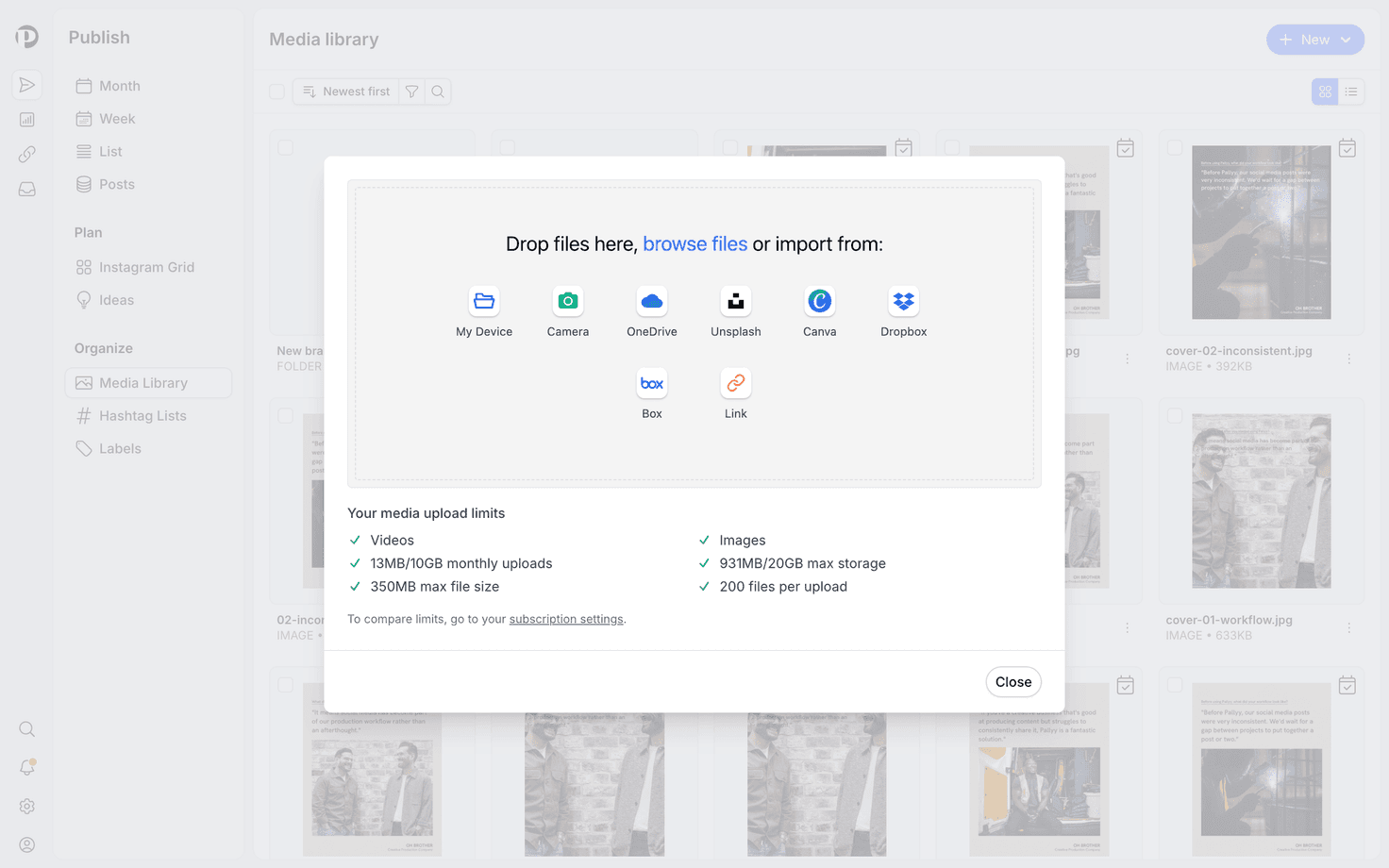
Wherever you upload media in Pallyy, Canva is available as a source:
- Open the media uploader, when composing a post or adding to your media library.
- Pick Canva as the source.
- Design in the Canva editor that opens.
- When you're done, the finished design comes straight back into Pallyy, ready to use in a post.
The Canva editor uses your own Canva account, so you'll sign in the first time you use it.
No exporting, no digging through your downloads folder. The design arrives like any other upload.
Where you can use it
The Canva option lives in Pallyy's media uploader itself, so it works anywhere you add media: composing a post for any platform, or filling your media library ahead of a batch scheduling session.
Canva isn't the only source in there either. You can also pull in stock photos with the Unsplash integration, or import existing files from Dropbox, Box, and OneDrive.
Frequently asked questions
Do I need a Canva account?
Yes. The Canva editor opens inside the flow, and you sign in with your own Canva account the first time you use it.
Does a Canva design count toward my storage?
Yes. Once imported, a Canva design is stored like any other upload and counts toward your plan's media storage. Storage limits per plan are on the pricing page.
Can I edit the design after importing it?
For design changes, edit in Canva and import again. Pallyy's uploader also includes a built-in image editor for quick crops and adjustments.
More in Integrations
Still need help? Email us at hey@pallyy.com and we'll get back to you.