
Pallyy approvals give every post a clear review trail, whether sign-off comes from your own team or from a client. Nothing goes live on a "I thought you checked it", and nobody digs through email threads to find out where a post stands.
If you review posts for clients, the agencies page shows how approvals fit into the full client workflow.
How to request approval on a post
Requesting approval takes a few clicks from the post composer.
- Open the post in the composer, from the calendar or from Publish > Review > Approvals.
- Click the arrow beside the main action button to open the actions menu.
- Choose Save and request internal approval for your team, or Save and request external approval for a client reviewing through a shared calendar.
- The post moves into the matching tab on the approvals page, where reviewers can Approve, Approve with comment, or Request changes.
- Once a draft is approved, it's scheduled in the same step.
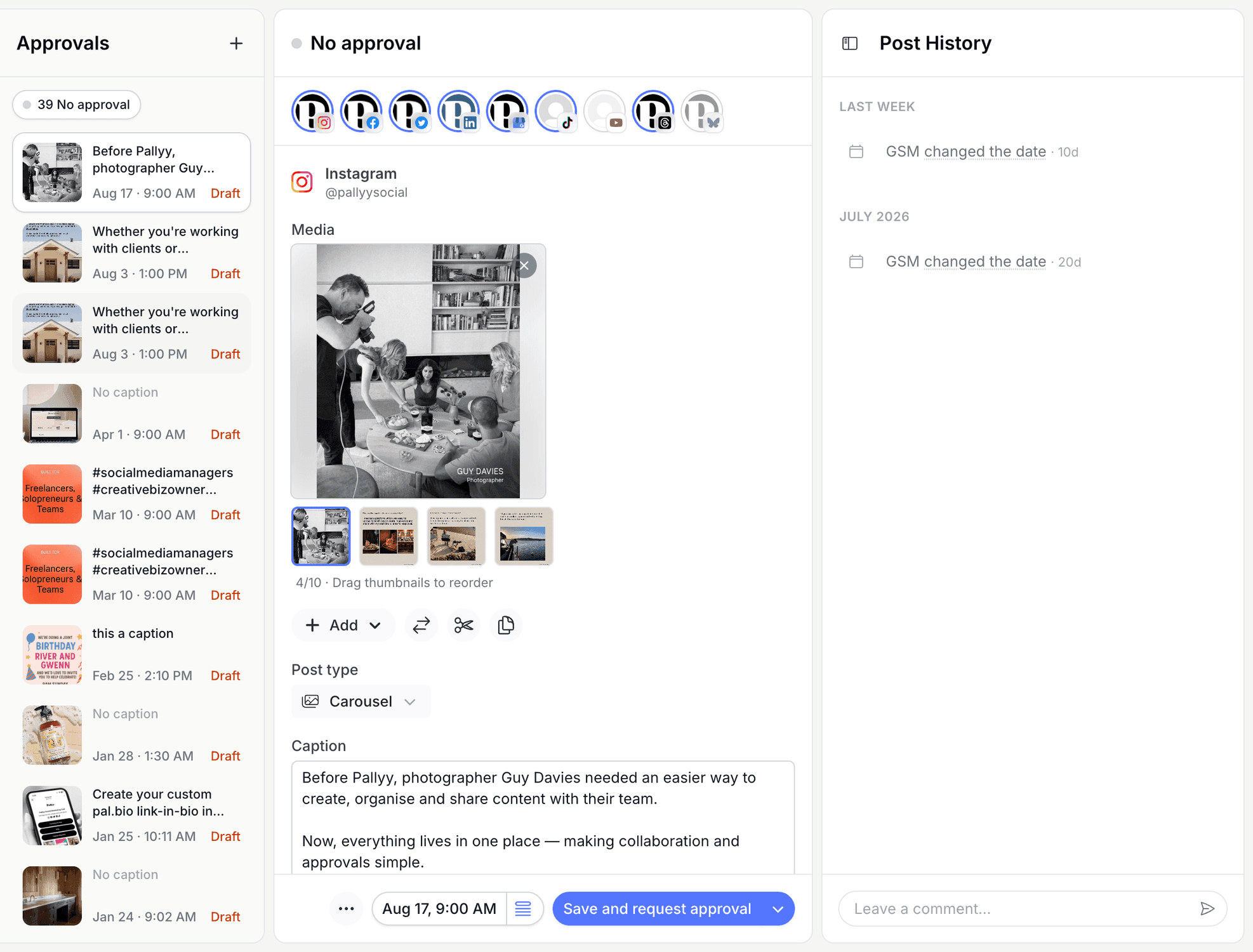
Find your approvals
Pallyy's approvals workspace lives at Publish > Review > Approvals, with a tab for every state a post can be in:
- Internal approval requested: awaiting your team
- External approval requested: awaiting review through a shared link
- Changes requested
- Approved
- No approval
One glance tells you what's waiting on whom.
Internal and external approvals
Internal approvals in Pallyy are for your own team, and external approvals are for clients reviewing through a shared calendar link. Use Save and request internal approval when a post needs a teammate's eyes before it goes anywhere near the client. Use Save and request external approval when it's ready for the client, who reviews and approves from the shared calendar without needing a Pallyy account.
Plenty of teams chain the two: internal sign-off first, then out to the client. The tabs keep both queues separate so neither gets lost.
Act on a post under review
Reviewing a post in Pallyy comes down to a few actions:
- Approve
- Approve with comment
- Request changes: prompts you for a comment so the feedback travels with the post
- Remove from review: if it shouldn't be in the queue at all
Approving a draft schedules it in the same step, so sign-off and scheduling happen together. Requesting changes parks the post as a draft until someone picks it back up.
Comments and post history
Every post under review in Pallyy keeps its full story in Post History: a timeline of when it was created, plus every status change, approval change, date change, and comment along the way. Comments are threaded, so replies stay attached to the point they answer, and you can edit or delete them.
Each comment also has an Internal only toggle that hides it from shared-calendar reviewers.
Use the Internal only toggle when your team needs to be candid in the margins, so the client sees only what's meant for them.
Frequently asked questions
Do clients need a Pallyy account to approve posts?
No. Clients approve Pallyy posts through your shared calendar link, straight from the browser, no account or login required. You handle the requesting inside Pallyy, they handle the approving from the link.
What happens when I approve a draft?
Approving a draft in Pallyy schedules it in the same step, so there's no second trip to set it live. And if a reviewer requests changes instead, the post parks as a draft until it's revised.
Can clients see my team's comments?
Only if you want them to. Pallyy comments have an Internal only toggle that hides a comment from shared-calendar reviewers, so internal back-and-forth stays internal while client-facing notes stay visible.
More in Features
Still need help? Email us at hey@pallyy.com and we'll get back to you.