
Pallyy's shared calendar gives your clients a live view of their content at a link you share, with no Pallyy account needed on their end. They see what's planned, and if you let them, they can approve posts right there.
How to share your calendar
Sharing takes one modal and a link.
- Open your calendar in Pallyy.
- Click the three dot menu in the calendar header and choose Share.
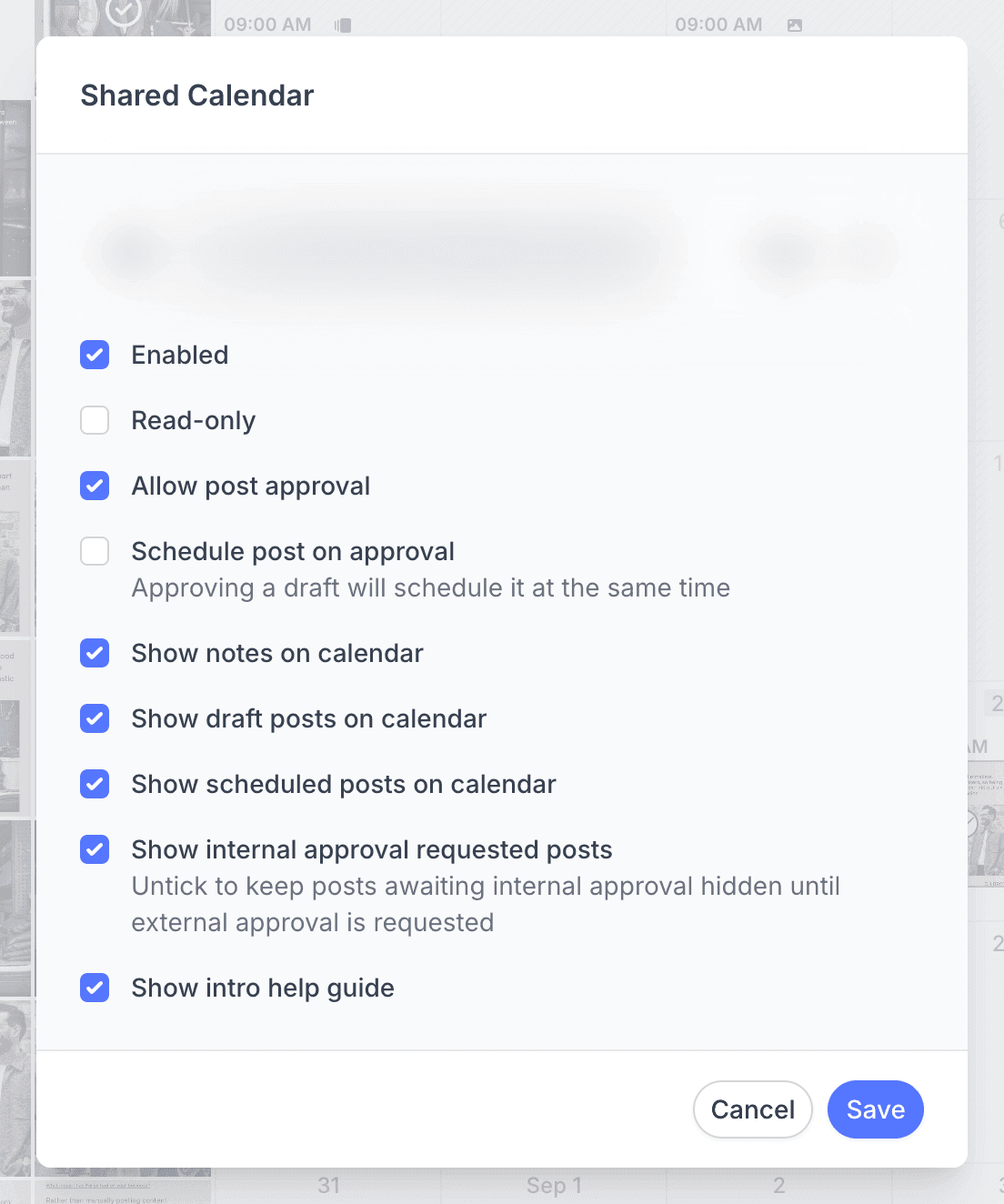
- In the Shared Calendar modal, turn on Enabled.
- Set the toggles for what your client can see and do, like Read-only or Allow post approval.
- Click Save, then copy the calendar link shown in the modal and send it to your client.
Your shared calendar lives at its own Pallyy subdomain, so your client gets a clean link to bookmark rather than a login to remember. Send it once and they can check in whenever they like.
Use your own domain
Pallyy shared calendars can also live on your own domain instead of a Pallyy one. In Settings > Custom domain you can change the subdomain to something on brand, like nike-socials, or go all in and host the calendar from a domain you own, like socials.nike.com. Your client sees your brand, not ours, and honestly, we respect the hustle.
Control what clients see and do
Every Pallyy shared calendar has its own settings, so you decide exactly what each client can see and do.
- Enabled turns the calendar on or off.
- Read-only makes it view only.
- Allow post approval lets clients change a post's approval status from the calendar, which feeds straight into approvals.
- Schedule post on approval means approving a draft schedules it at the same time, no extra step for you.
- Show notes on calendar, Show draft posts, Show scheduled posts, and Show internal approval requested posts control which content appears.
- Show intro help guide gives first-time viewers a quick walkthrough.
Pair Allow post approval with Schedule post on approval and an approved draft gets scheduled in the same moment, no extra step for you.
Since the options are per calendar, a hands-on client can get approval powers while another gets a read-only view, and neither knows the difference.
Frequently asked questions
Do my clients need a Pallyy account?
No. Pallyy's shared calendar works with just the link: your clients open it in a browser, view the content, and approve posts if you've allowed it. No signup, no login, no password reset emails at 11pm.
Can clients approve posts from the shared calendar?
Yes. Turn on Allow post approval in the shared calendar's settings and clients can change a post's approval status right from the calendar. Add Schedule post on approval and an approved draft gets scheduled in the same moment.
Can I hide drafts or internal posts from clients?
Yes. Each Pallyy shared calendar has toggles for draft posts, scheduled posts, internal approval requested posts, and notes, so you choose exactly what each client's calendar shows. Work in progress stays out of sight until you're ready.
More in Features
Still need help? Email us at hey@pallyy.com and we'll get back to you.