
Pallyy's queue scheduling lets you save your preferred posting times per day of the week, then drop posts into the next available slot instead of picking a date and time every single time. Set it up once and scheduling becomes a two click job.
How to set up your queue
Setting up a queue takes a couple of minutes from the calendar header.
- Go to your Calendar > Month.
- Click the three dots button in the calendar header and choose Queue.
- Click Create Queue.
- For each day of the week, click the plus button to add a time. In the Add queue time modal, set the Time and tick any other Days that should share it.
- Close the queue when your week looks right. From now on, the composer's queue button drops posts straight into your next open slot.
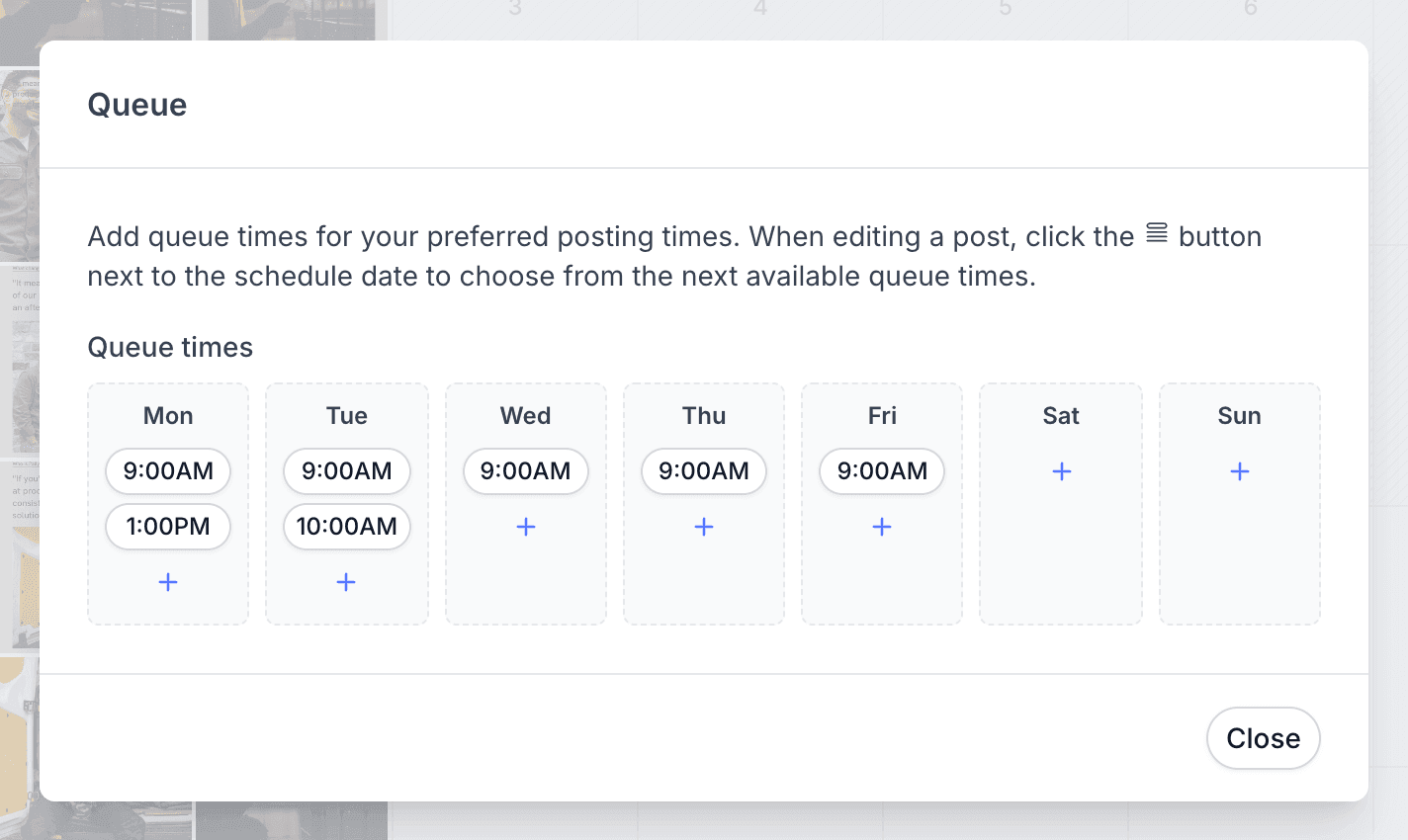
Create your queue
Once your queue exists, you save the times you want to post for each day of the week. Maybe 9am and 5pm on weekdays, just midday on weekends, whatever suits your audience.
Not sure what times to pick? The calendar's Best time to post heatmap shows when your Instagram audience is most engaged, which makes a solid starting point.
Edit your queue times
Pallyy queue times are managed per weekday, and you can add, edit, or delete times for any day whenever your posting rhythm changes. Each weekday holds its own list of times, so your Monday schedule doesn't have to look anything like your Saturday one.
Schedule posts into the queue
Scheduling a post to your Pallyy queue happens in the composer: the Queue times dropdown shows the next available slots, so you pick one and you're done. Need to look further ahead? More queue times shows additional slots, and Edit queue times takes you straight back to your queue setup without leaving the composer.
Posts fill slots in order, so if your next slot is Tuesday at 9am, that's where the post goes. Queue up a batch of posts in one sitting and Pallyy spreads them across your saved times automatically.
When to use the queue instead of the calendar
Pallyy's queue is best for a steady posting rhythm, while the calendar is best for posts tied to specific dates. A product launch belongs on a date. Your regular tips, memes, and behind the scenes posts can just take the next slot. Most people use both: date specific posts on the calendar, everything else in the queue.
Frequently asked questions
Which plans include queue scheduling?
Pallyy's queue scheduling is available on Pro, Agency, and Scale. The Free plan schedules posts by picking a date and time directly.
Can I set different queue times for each day of the week?
Yes. Pallyy queues store preferred posting times per weekday, and you can add, edit, or delete times for each day independently. Weekends can run a completely different schedule to weekdays.
What happens if I want a specific slot rather than the next one?
You can pick it. Pallyy's Queue times dropdown in the composer offers the next available slots, and More queue times shows later ones, so you're not locked into the very next opening.
More in Features
Still need help? Email us at hey@pallyy.com and we'll get back to you.